Players
Preparation · Players
On this page The roster Importing from D&D Beyond
The roster
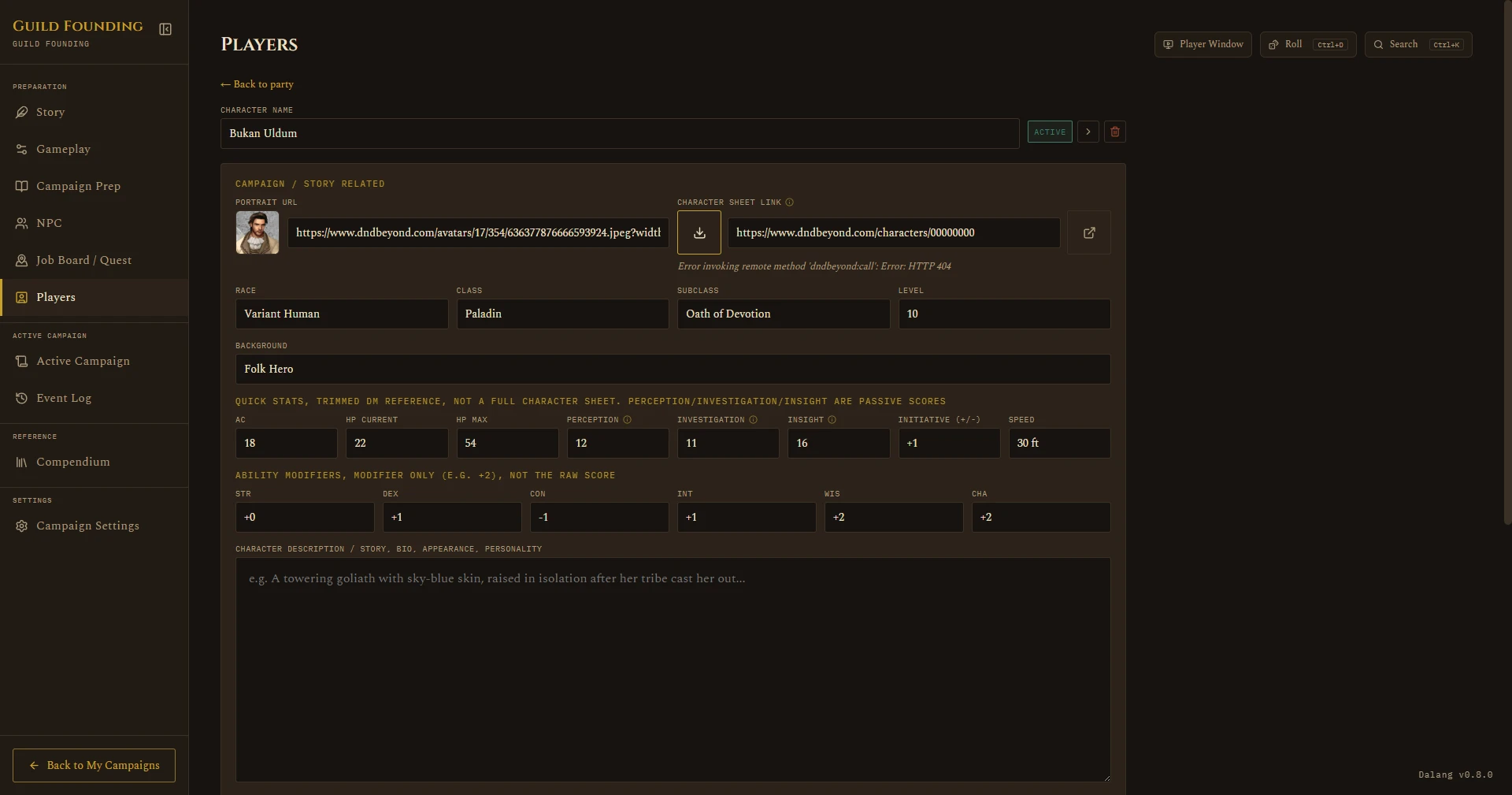
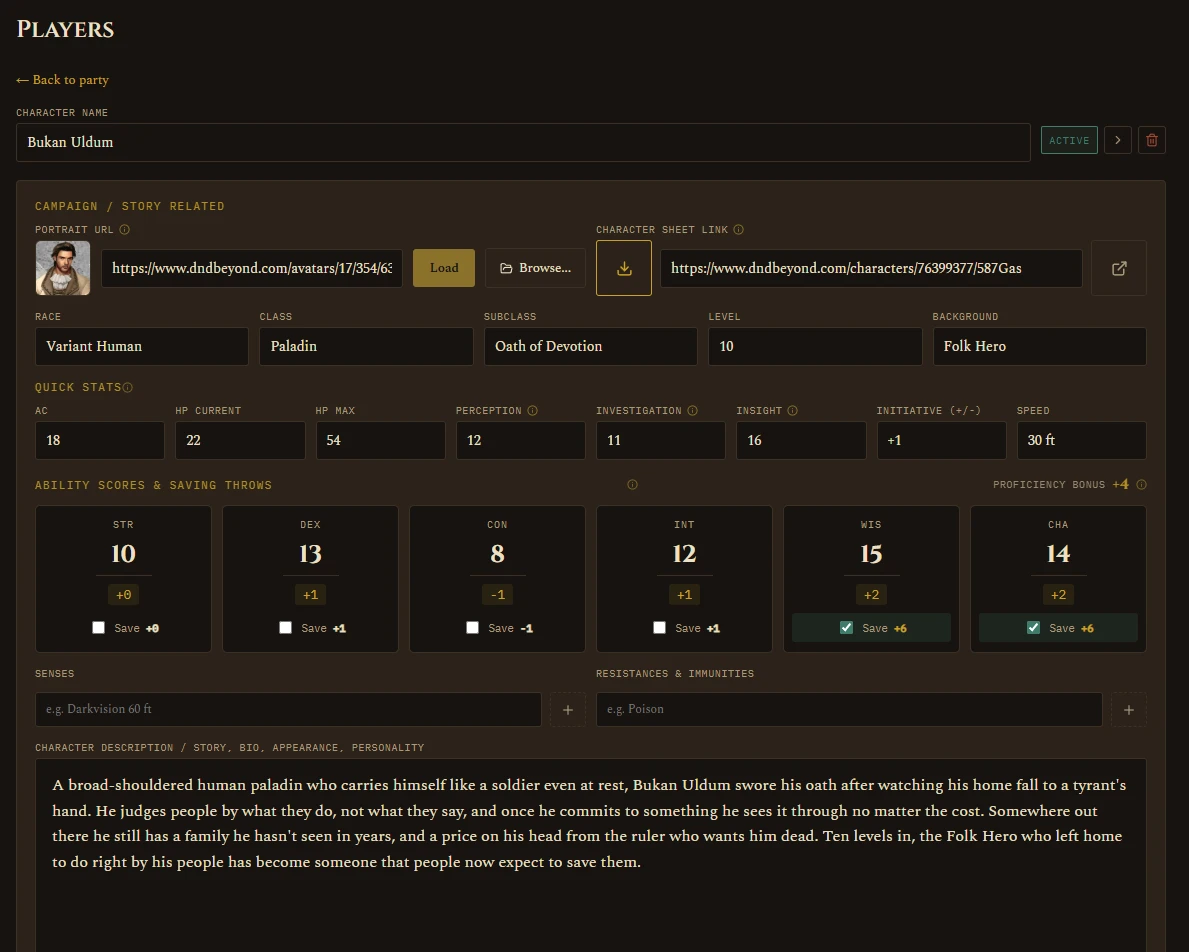
A roster of character cards, toggle each Active or Inactive. Only Active characters show up on the Active Campaign tab. Click into a card for the full character sheet: race, class, subclass, level, quick stats (AC, HP, passive perception, etc.), ability scores and saving throws, description, and a couple of DM-only fields like player nickname and personal notes. Portrait URL and Character Sheet Link sit at the top of the sheet, above Race/Class/Subclass/Level.
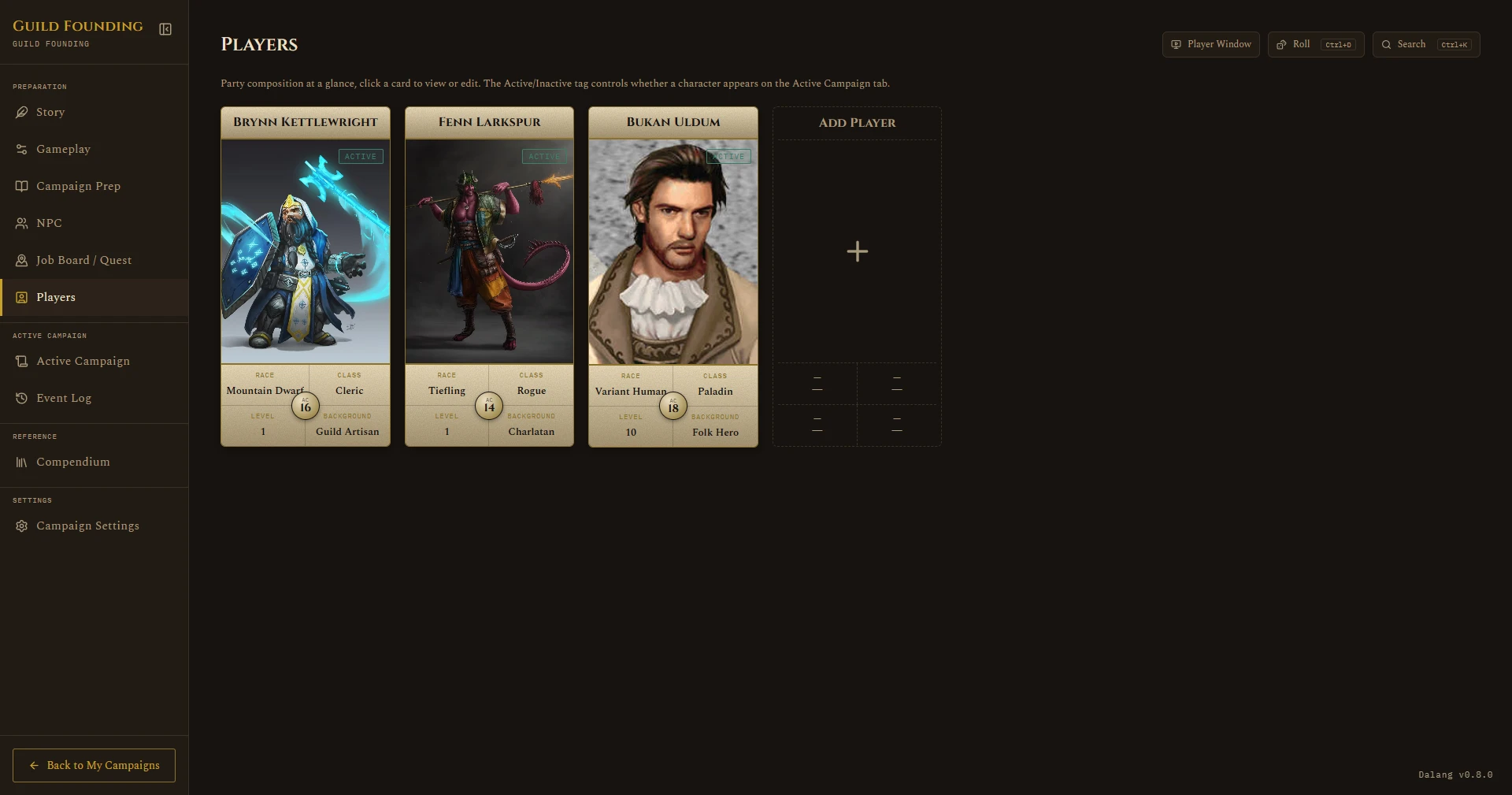
Ability scores work the same way official character sheets do: type in the raw score and the modifier, and if you check the saving throw box, the save bonus, are both calculated for you. Proficiency bonus comes from Level automatically and shows next to the section, it's never entered by hand. If a character already has an old stored modifier from before this existed, that keeps showing exactly as it did until you type in a real score for that ability, nothing resets to blank. Senses and Resistances/Immunities are free-form tag fields on the same screen.
AC now shows up wherever it matters mid-session too: the token popup you get from clicking a combatant during a fight, and the Party Present popup on Active Campaign, which also shows Subclass, passive Investigation/Insight alongside passive Perception, and the same Ability Scores & Saves section. Picking a player to add to a fight shows their class and level in the picker, the same as monster and NPC rows already did.
Importing from D&D Beyond
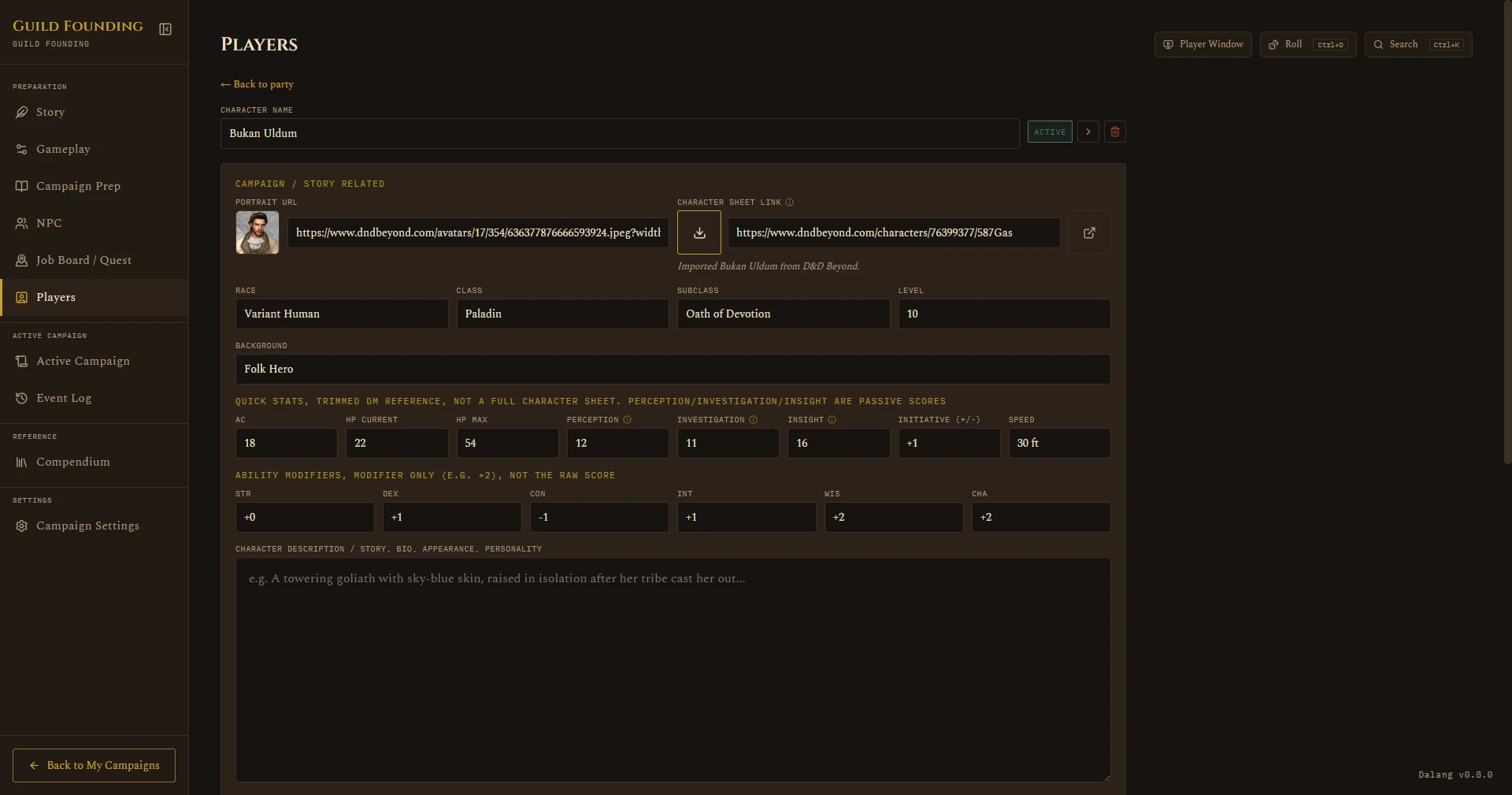
If a player already built their character on D&D Beyond, you don't have to retype everything by hand. Paste their character URL in and the app fills in as much as it reliably can. This works in both Dalang Desktop and Dalang Web.
The character's D&D Beyond visibility needs to be set to Public first, a private sheet can't be read. This is a setting on D&D Beyond's own site, not something Dalang controls.
- Open the player's card and paste their D&D Beyond character URL into the Character sheet link field.
- Click the download icon next to the field to import.
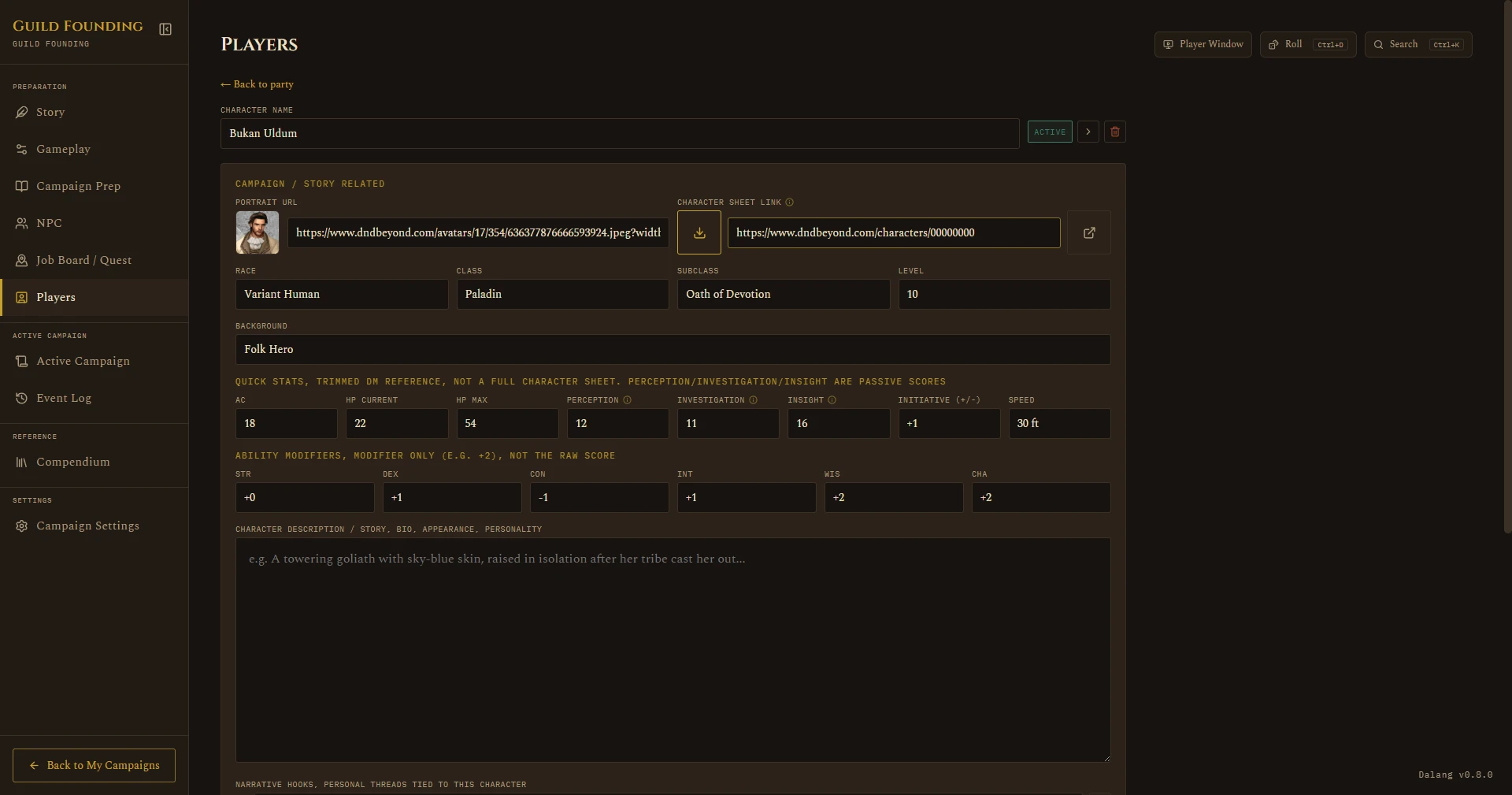
What gets filled in:
- Race, Class, Subclass, Level, Background
- AC and HP (current and max, including the Constitution contribution)
- Passive Perception, Investigation, and Insight
- Ability scores, saving throw proficiencies, and initiative
- Walking speed
- Portrait
- Personality traits, ideals, bonds, and flaws, appended to Narrative Hooks rather than replacing it, so anything you already wrote by hand survives a re-import
A few things it deliberately doesn't try to cover: unusual AC sources like racial natural armor, Draconic Resilience, dual-wielding fighting style bonuses, or a custom AC formula are left blank rather than risking a wrong number for something that matters in combat. Feats and items that modify movement speed beyond the base walking speed aren't accounted for either.
If the character can't be reached (private sheet, D&D Beyond is slow to respond, or the URL doesn't look like a real character link), you'll get a clear error instead of the import hanging indefinitely.